

Learn practical Power BI skills for preparing data, creating semantic models, designing reports, and delivering actionable business insights. Gain hands-on experience with Power Query, DAX, dashboards, workspaces, refresh, and row-level security so they can create reliable analytics solutions for real organizations. PL-300 helps preparation for the Microsoft Power BI Data Analyst Associate certification exam. Demonstrate job-ready analytics and business intelligence skills.
Get This Course
$1,995.00
October 26 - 28, 2026
Tentative
7:00 AM – 3:00 PM PST
December 14 - 16, 2026
Tentative
8:00 AM – 4:00 PM MST
Reserve Your Seat
- Virtual instructor Led Training
- Complete Hands-on Labs
- Softcopy of Courseware
- Learning Labs
- Virtual instructor Led Training
- Complete Hands-on Labs
- Softcopy of Courseware
- Learning Labs
- You can use your Purchase Card and checkout
- The GSA Contract Number: 47QTCA20D000D
- Call 800-453-5961 for details
- Customize your class
- Delivery Onsite or Online for your organization
- Choice of Dates when and where you want
- Guidance in choosing and customizing your class
Question About this Course?
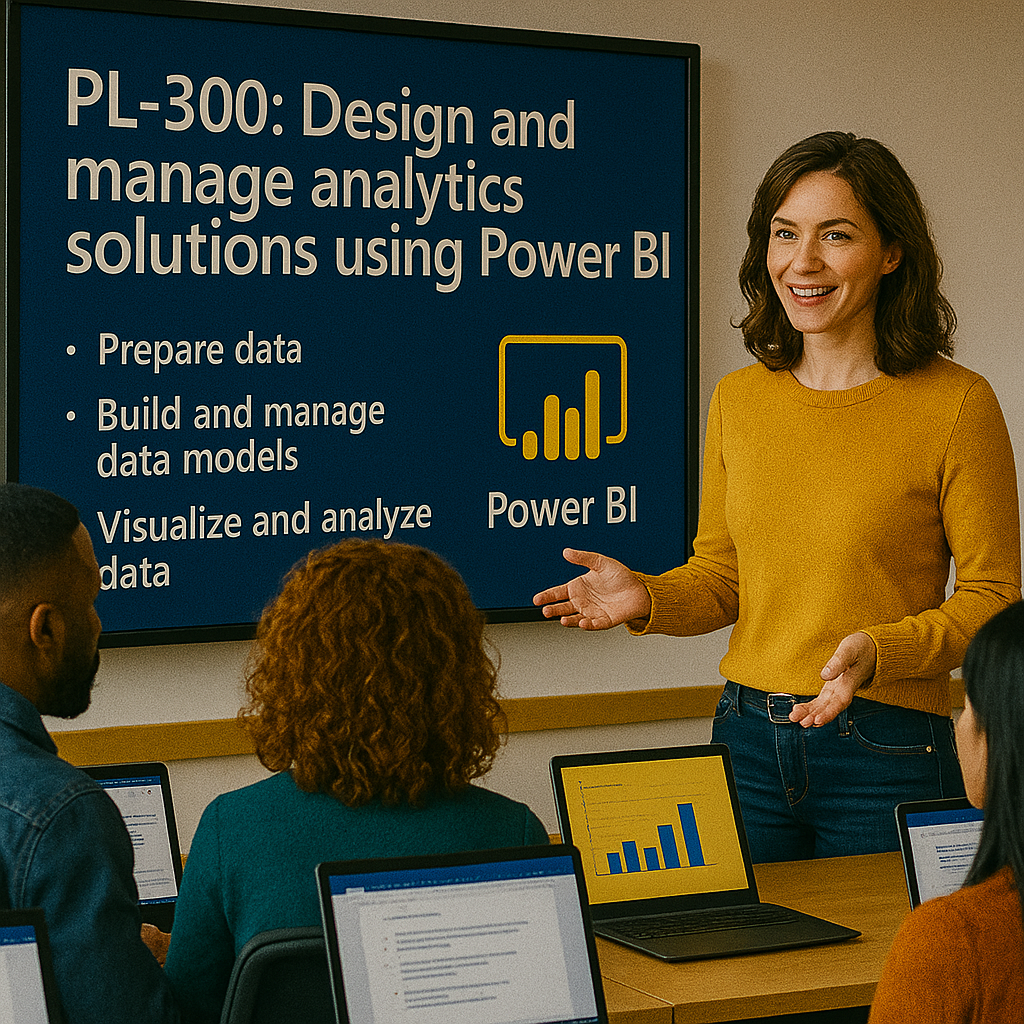
Microsoft Power BI Data Analyst PL-300 Course Outline
Learning Path 1: Get started with Microsoft data analytics
Module 1: Get started with data analytics
Students learn the role of a data analyst and how Power BI supports data-driven decision-making. They review the data analysis process, Power BI tools, data analyst responsibilities, and how analytics solutions provide business value.
Topics include:
- Describe the data analyst role.
- Explain the data analysis process.
- Identify Power BI components.
- Review Power BI Desktop and Power BI service.
- Understand how analysts deliver business insights.
Module 2: Prepare for Power BI development
Students learn how to set up the Power BI environment and prepare files, sample data, and tools for report development.
Topics include:
- Install and open Power BI Desktop.
- Review Power BI service concepts.
- Prepare local lab files.
- Understand PBIX file structure.
- Connect Power BI Desktop to sample data.
Learning Path 2: Prepare data for analysis
Module 3: Get data in Power BI
Students learn how to connect to different data sources and choose the correct connection mode. They review import, DirectQuery, DirectLake concepts, data source settings, credentials, privacy levels, and parameters.
Topics include:
- Connect to files, folders, databases, and online services.
- Choose Import, DirectQuery, or DirectLake when appropriate.
- Configure data source settings.
- Manage credentials and privacy levels.
- Create and modify parameters.
Module 4: Clean, transform, and load data
Students learn how to use Power Query Editor to clean and shape data before loading it into the model. They review data profiling, column quality, data types, null handling, merge, append, pivot, unpivot, and query loading.
Topics include:
- Profile data quality and distribution.
- Clean inconsistent, duplicate, or null values.
- Transform columns and change data types.
- Merge, append, pivot, and unpivot queries.
- Configure query loading and refresh behavior.
Learning Path 3: Model data with Power BI
Module 5: Design a semantic model
Students learn how to design semantic models that support accurate reporting and scalable analytics. They review star schema, fact tables, dimension tables, relationships, cardinality, cross-filter direction, hierarchies, and model properties.
Topics include:
- Design fact and dimension tables.
- Create and manage relationships.
- Configure cardinality and cross-filter direction.
- Create hierarchies and role-playing dimensions.
- Configure table and column properties.
Module 6: Create DAX calculations
Students learn how to create DAX calculations that support analysis. They review calculated columns, calculated tables, measures, aggregation measures, quick measures, CALCULATE, basic statistical functions, and common DAX patterns.
Topics include:
- Create calculated columns and calculated tables.
- Create single aggregation measures.
- Use CALCULATE to modify filter context.
- Create quick measures.
- Apply basic statistical DAX functions.
Module 7: Modify DAX filter context
Students learn how DAX filter context affects calculations and how to control it. They review row context, filter context, context transition, ALL, ALLEXCEPT, KEEPFILTERS, and filter-modifying patterns.
Topics include:
- Explain row context and filter context.
- Modify filters by using CALCULATE.
- Use ALL and ALLEXCEPT.
- Use KEEPFILTERS when appropriate.
- Troubleshoot unexpected DAX results.
Module 8: Use DAX time intelligence
Students learn how to create date-based calculations in Power BI. They review date tables, fiscal calendars, year-to-date, quarter-to-date, month-to-date, same period last year, and moving-period calculations.
Topics include:
- Create and mark a date table.
- Build year-to-date calculations.
- Build prior-period comparisons.
- Create fiscal calendar calculations.
- Validate time intelligence results.
Module 9: Optimize model performance
Students learn how to improve model performance and troubleshoot inefficient reports. They review model size, granularity, unnecessary columns, relationships, slow measures, Performance Analyzer, and DAX query view.
Topics include:
- Remove unnecessary rows and columns.
- Reduce model granularity when possible.
- Identify slow visuals and DAX queries.
- Use Performance Analyzer.
- Improve measure and relationship performance.
Learning Path 4: Visualize and analyze data
Module 10: Design Power BI reports
Students learn how to create effective Power BI reports that meet business requirements. They review visual selection, report pages, slicers, filters, formatting, themes, conditional formatting, and accessibility.
Topics include:
- Select appropriate visuals.
- Configure report pages.
- Apply themes and formatting.
- Add slicers and filters.
- Apply conditional formatting.
Module 11: Enhance report designs for user experience
Students learn how to improve report usability and storytelling. They review bookmarks, buttons, drillthrough, tooltips, navigation, mobile layout, interactions, and report consumption patterns.
Topics include:
- Create bookmarks and buttons.
- Configure drillthrough pages.
- Create custom tooltips.
- Configure visual interactions.
- Design mobile-friendly report layouts.
Module 12: Create visual calculations
Students learn how to use visual calculations to create calculations scoped to a visual. They review when to use visual calculations, how they differ from model measures, and how to validate visual-level results.
Topics include:
- Create visual calculations in Power BI Desktop.
- Use visual-level fields and calculations.
- Hide supporting fields when appropriate.
- Compare visual calculations with DAX measures.
- Validate visual calculation results.
Module 13: Perform analytics in Power BI
Students learn how to apply Power BI analytics features to identify patterns, explain trends, and support business decisions. They review drill down, Analyze, forecasting, decomposition tree, AI visuals, Q&A, and insights.
Topics include:
- Use drill down and drillthrough analysis.
- Use Analyze features.
- Add forecasts and analytics lines.
- Use decomposition tree visuals.
- Use Q&A and AI visuals.
Learning Path 5: Manage and secure Power BI
Module 14: Create dashboards and publish content
Students learn how to publish reports and create dashboards in the Power BI service. They review pinning visuals, dashboard tiles, sharing, subscriptions, content distribution, and dashboard design.
Topics include:
- Publish reports to the Power BI service.
- Pin visuals to dashboards.
- Create and manage dashboard tiles.
- Configure subscriptions.
- Share and distribute content.
Module 15: Manage workspaces and semantic models
Students learn how to manage Power BI content after publication. They review workspaces, roles, semantic model settings, lineage, endorsement, refresh, apps, deployment, and workspace governance.
Topics include:
- Create and manage workspaces.
- Assign workspace roles.
- Manage semantic model settings.
- Publish and update Power BI apps.
- Review lineage and content ownership.
Module 16: Configure refresh and gateways
Students learn how to keep Power BI data current. They review scheduled refresh, data gateways, cloud connections, on-premises data sources, credentials, privacy levels, and refresh troubleshooting.
Topics include:
- Configure scheduled refresh.
- Configure data source credentials.
- Use on-premises data gateways.
- Monitor refresh history.
- Troubleshoot refresh failures.
Module 17: Secure data access in Power BI
Students learn how to secure Power BI content and data. They review row-level security, dynamic security, workspace permissions, app permissions, sensitivity labels, and secure sharing.
Topics include:
- Configure row-level security.
- Test roles in Power BI Desktop.
- Implement dynamic RLS.
- Manage workspace and app permissions.
- Apply sensitivity labels and secure sharing.
Hands-on labs
The PL-300 labs support hands-on practice for Microsoft Power BI data analysts. This single consolidated lab list is based on the official MicrosoftLearning PL-300 labs and the most important lab/demo topics found in the PL-300 PowerPoint speaker notes.
- Lab 1: Set up your own Power BI lab environment.
- Lab 2: Get data in Power BI.
- Lab 3: Connect to files, folders, databases, and online data sources.
- Lab 4: Clean, transform, and load data in Power BI.
- Lab 5: Profile data, correct data types, replace values, remove duplicates, and handle nulls.
- Lab 6: Merge, append, pivot, unpivot, and shape Power Query data.
- Lab 7: Configure a semantic model in Power BI.
- Lab 8: Create relationships, hierarchies, date tables, and model properties.
- Lab 9: Create DAX calculations in semantic models.
- Lab 10: Modify DAX filter context in Power BI.
- Lab 11: Use DAX time intelligence functions in Power BI.
- Lab 12: Create visual calculations in Power BI Desktop.
- Lab 13: Optimize model and report performance with Performance Analyzer and DAX query review.
- Lab 14: Design Power BI reports.
- Lab 15: Enhance Power BI report designs for user experience and storytelling.
- Lab 16: Perform analytics in Power BI with drillthrough, decomposition tree, Q&A, AI visuals, and forecasting.
- Lab 17: Create and manage workspaces in the Power BI service.
- Lab 18: Manage files, semantic models, scheduled refresh, and gateway connections in Power BI.
- Lab 19: Secure data access with row-level security.
- Lab 20: Create dashboards in the Power BI service.
Certification alignment
This course supports preparation for Exam PL-300: Microsoft Power BI Data Analyst. The exam validates the ability to prepare data, model data, visualize and analyze data, and manage and secure Power BI assets.
PL-300 skills measured
- Prepare the data.
- Model the data.
- Visualize and analyze the data.
- Manage and secure Power BI.
Course review
Students should leave the course able to build complete Power BI analytics solutions from source data through published and secured reports. The course review should reinforce Power Query, data profiling, semantic modeling, DAX calculations, report design, analytics features, dashboards, workspaces, refresh, gateways, and row-level security.
Certification exam review
Exam review should focus on practical Power BI scenarios, data preparation decisions, modeling dependencies, DAX calculations, visualization choices, performance optimization, and secure content distribution. Priority review areas should include data source settings, DirectQuery versus Import, parameters, Power Query transformations, relationships, date tables, DAX measures, filter context, time intelligence, visual calculations, report design, analytics features, workspaces, scheduled refresh, gateways, row-level security, and sensitivity labels.
Question About this Course?
Need help picking the right course?
Contact Us
Call Now
Call Now800-453-5961
×